How to work with mass payouts
How to prepare a CSV registry, upload it to your dashboard, fix errors and run the payouts.
What mass payouts are
A mass payout is a registry: one CSV file where every row becomes a separate payout. Instead of creating hundreds of payouts one by one, you upload a file, the system checks every row, and after you confirm, all payouts go out at once.
Useful for:
- paying partners, authors or contractors at the end of a period;
- refunds or bonuses to many recipients;
- any regular payouts where the recipient list is already kept in a spreadsheet.
Available payout methods: bank card, SBP and crypto wallet (TRX and ETH networks). The form shows only the methods covered by your payout tariffs.
One registry uses one payout method. To pay both to cards and via SBP, create two registries.
Where to find it
Mass Payouts is a separate item in the left menu of the Collably dashboard. The section lists your registries: date, title, number of successful and total payouts, status. You can filter the list by status and date, and download the original file of any registry again.
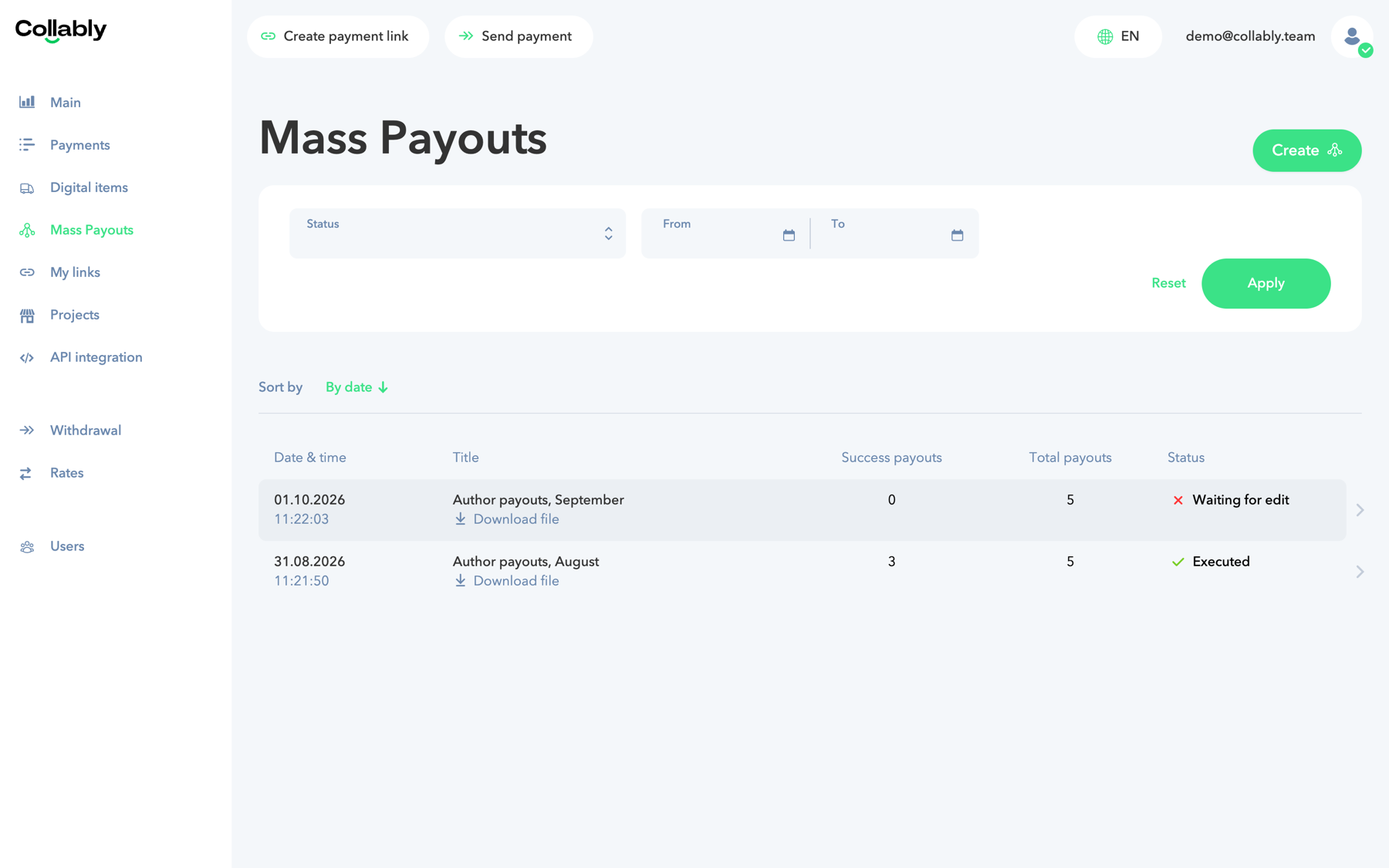 Open full-size screenshot
If the menu item is missing, the feature is not enabled for your account yet, or you as an employee do not have access to it — see the FAQ.
Preparing the registry file
The registry is uploaded as a CSV file of up to 10 MB. The easiest way is to start from the template: pick a payout method in the creation form and click “Download blank template”.
File rules:
- the separator is a semicolon
;(a comma is also recognised); - the first row is always the header and is not processed;
- every following row is one payout; a row without an amount is skipped;
- do not change the column order: columns are read by position, not by name;
- write the amount as a number with no spaces or currency sign:
1000or1000.50.
The first six columns are the same for every method:
| # | Template column | What to enter | Required |
|---|---|---|---|
| 1 | Payout order Id | Your payout number. Must be unique across all your payouts, up to 255 characters | No |
| 2 | Description | Payout purpose, up to 255 characters | No |
| 3 | Comment for yourself | A note for you; the recipient does not see it | No |
| 4 | Payout Amount | Payout amount, within your tariff minimum and maximum | Yes |
| 5 | Payout Currency | Payout currency, e.g. EUR | Yes |
| 6 | Account Currency for withdrawal | Currency of the balance to debit | Yes |
The recipient details follow and depend on the method:
| Method | Column 7 | Column 8 |
|---|---|---|
| Bank card | Card number, no spaces | Card holder name (required) |
| SBP | Recipient phone number | Bank Member Id of the recipient's bank |
| Crypto wallet | Wallet address | Network: TRX or ETH |
The SBP template has a list of banks with their Member Ids to the right of the data — take the code from there. Columns to the right of the required ones can hold your own notes: they are stored and returned in the export.
Example file for card payouts:
Payout order Id (unique for merchant);Description (Payout purpose);Comment for yourself;Payout Amount;Payout Currency;Account Currency for withdrawal;Recipient Account Card Number;Recipient Account Card Holder Name
inv-2026-09-001;September royalties;Author 15;120;EUR;EUR;4400000011112222;JAMES MILLER
inv-2026-09-002;September royalties;Author 27;250.50;EUR;EUR;5500000033334444;SOFIA GARCIA
If you edit the file in Excel, save it as “CSV UTF-8” with a semicolon separator. Make sure Excel does not turn long card numbers into 4.4E+15: set the text format for that column.
Creating a registry
A registry takes three fields: title, payout method and file.
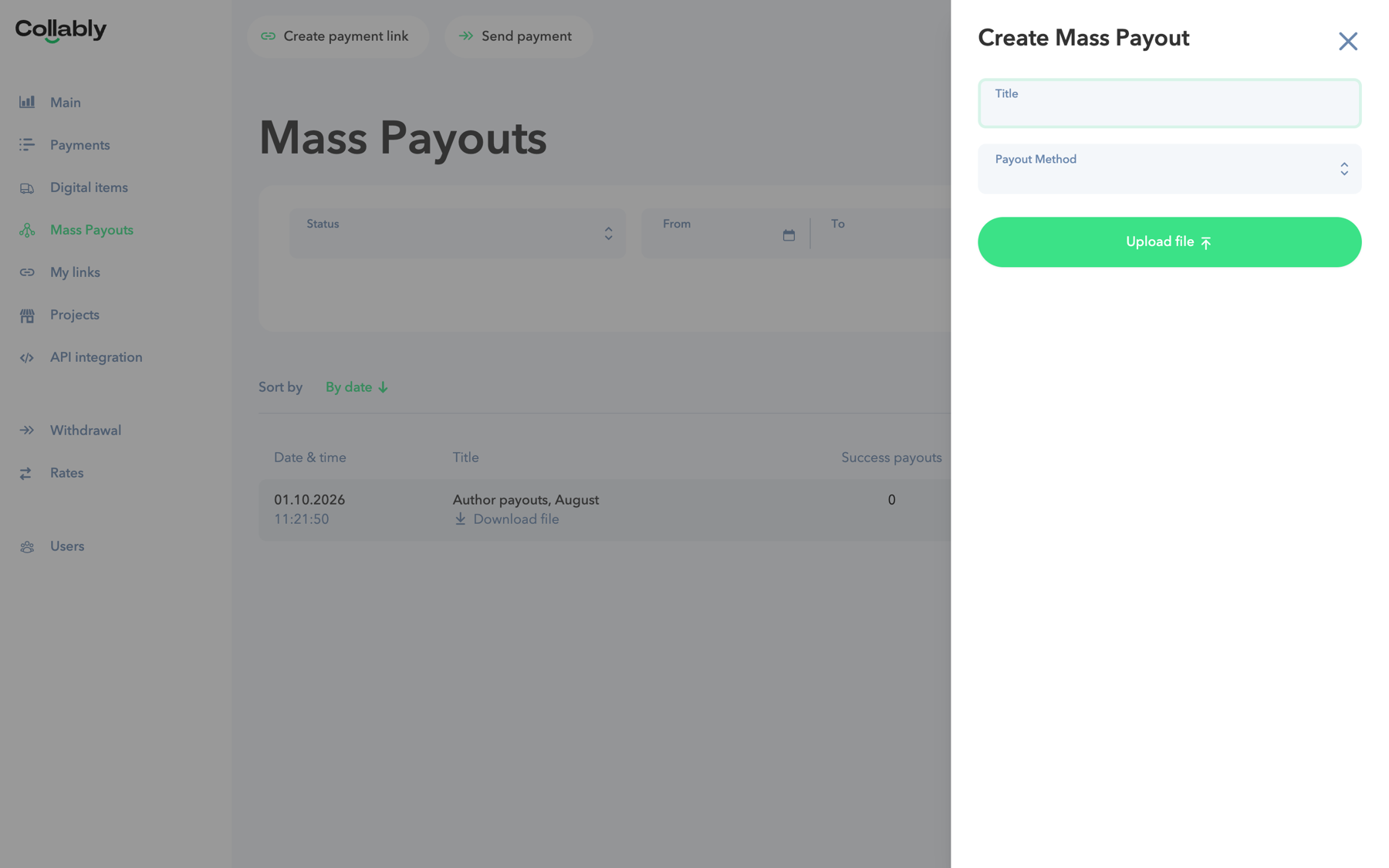
- In Mass Payouts, click “Create” in the top right. The “Create Mass Payout” panel opens.
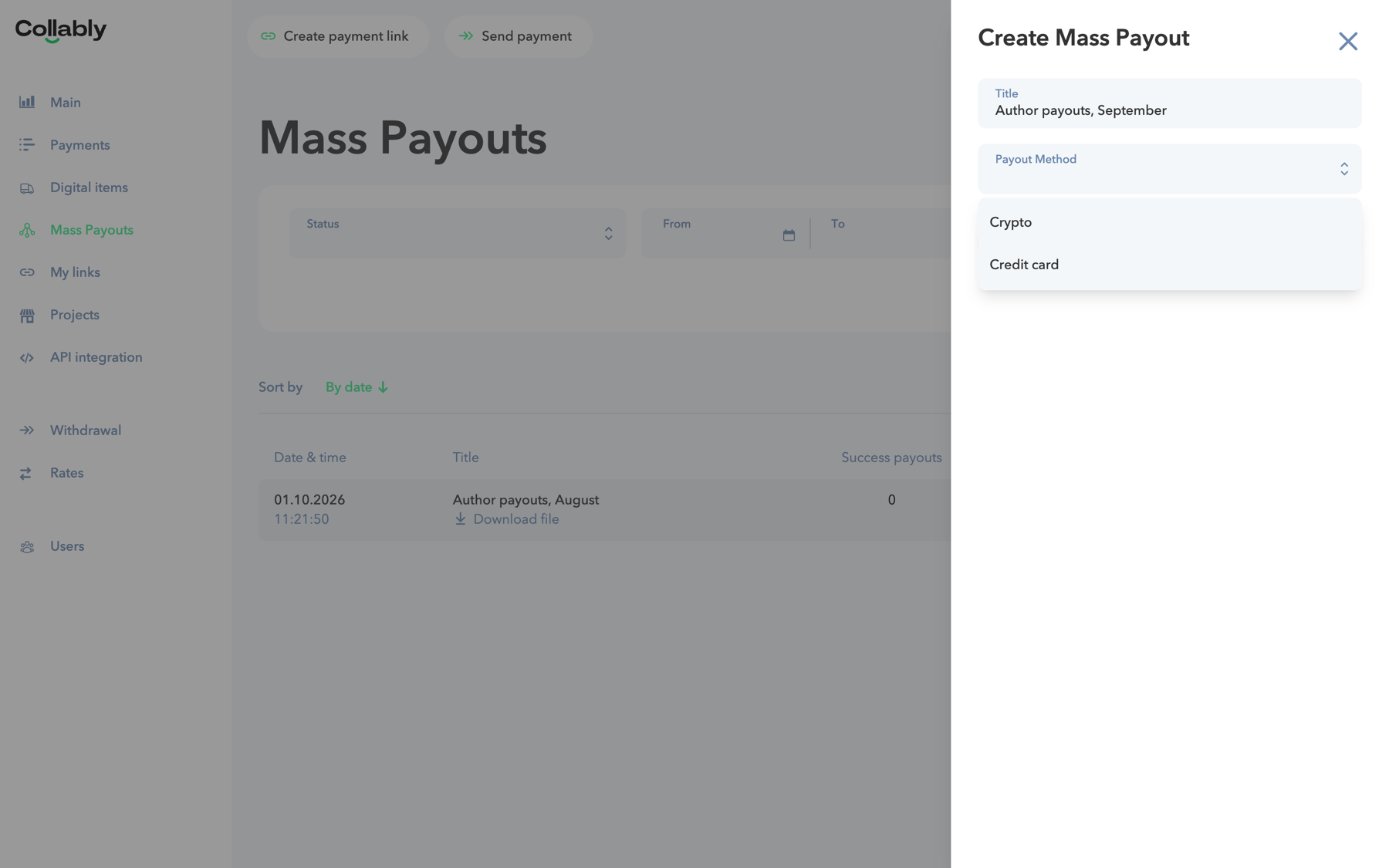
- Enter a title — it is only for you, to find the registry in the list. For example, “Author payouts, September”.
- Choose the payout method. The list shows only the methods from your tariffs.
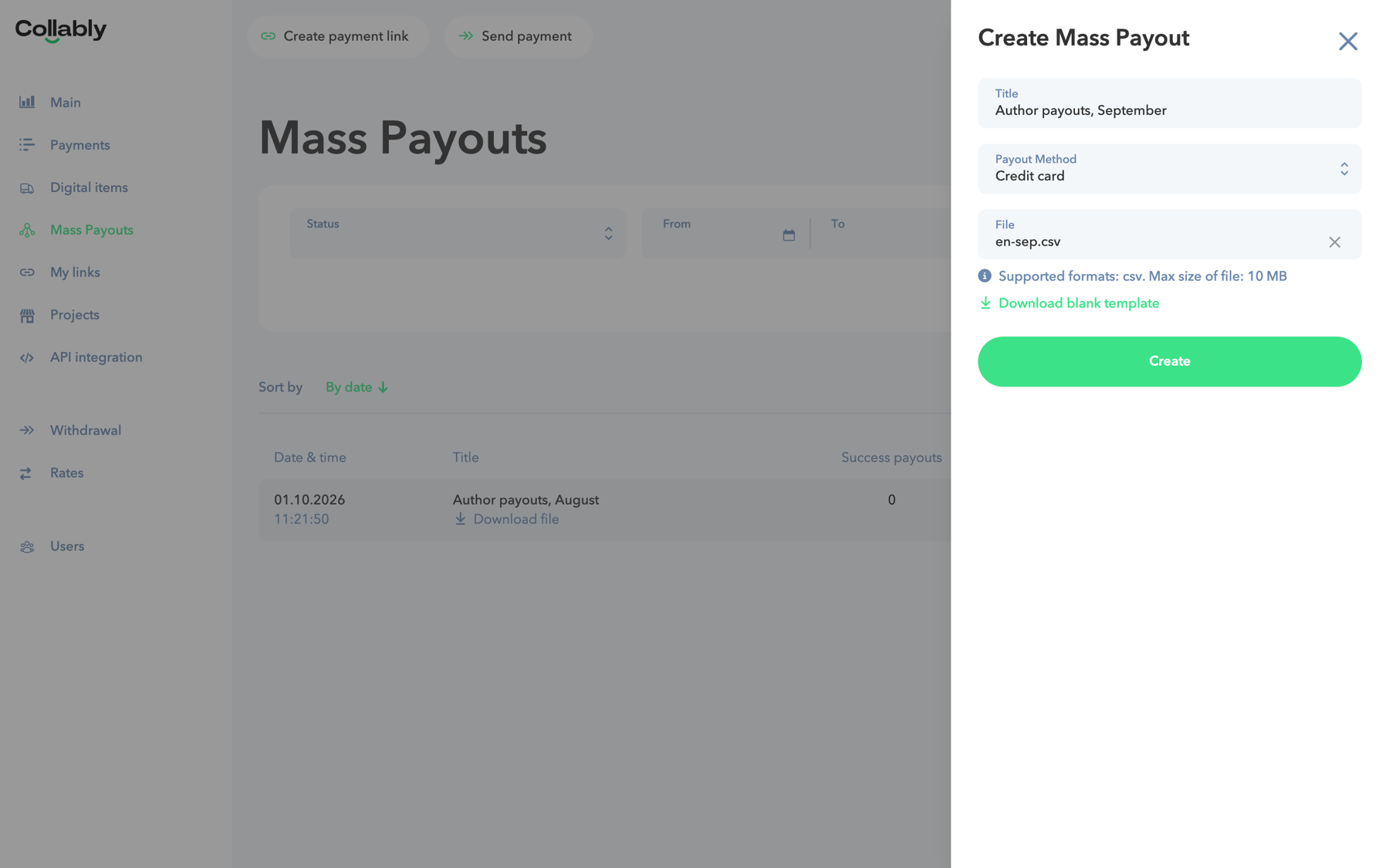
- Once a method is chosen, the “Download blank template” link appears. Fill in the template following “Preparing the registry file”.
- Click “Upload file” and choose the CSV.
- Click “Create”. The new registry page opens.
 Open full-size screenshot
 Open full-size screenshot
 Open full-size screenshot
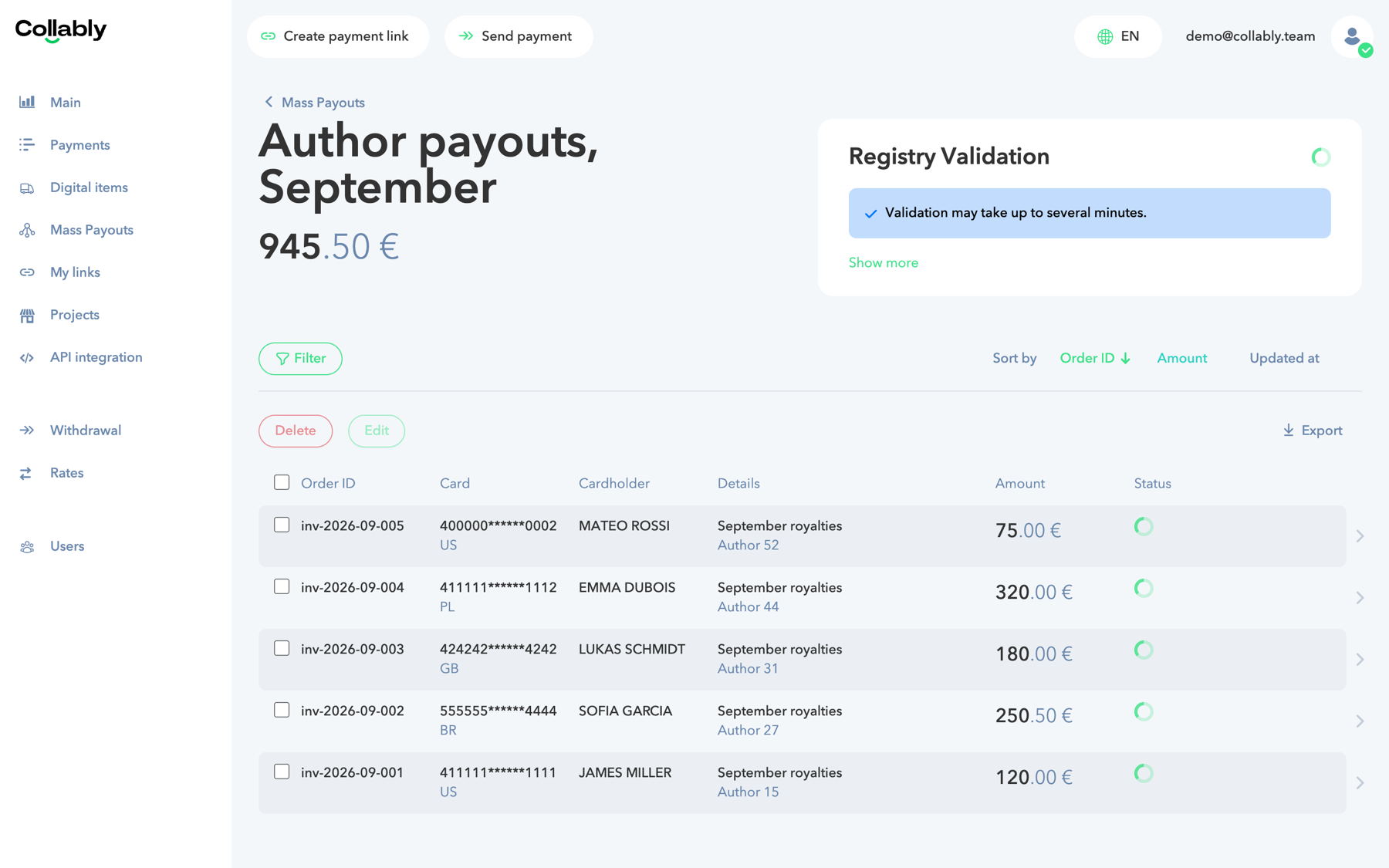
Right after creation the registry is in “Registry Validation”: the system checks every row. This takes up to several minutes; the page refreshes on its own.
 Open full-size screenshot
Checking and running the registry
A registry can be run only when every row has passed the check. Nothing is debited before the run, so you can safely fix the registry.
If the registry has errors
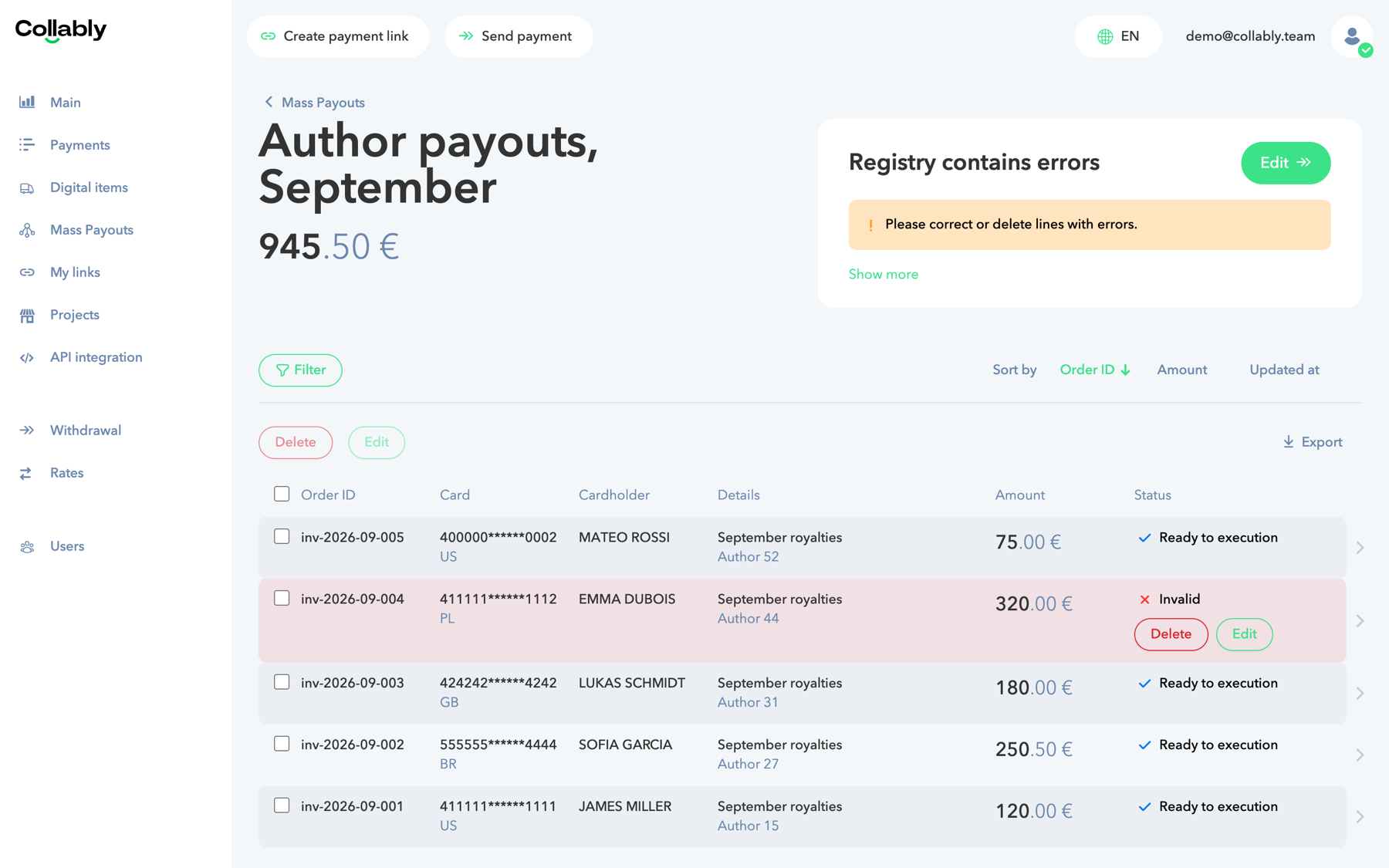
The registry switches to “Registry contains errors”, and rows with errors are highlighted red with the “Invalid” status. The “Edit” button leaves only those rows in the table.
 Open full-size screenshot
Each such row has two buttons:
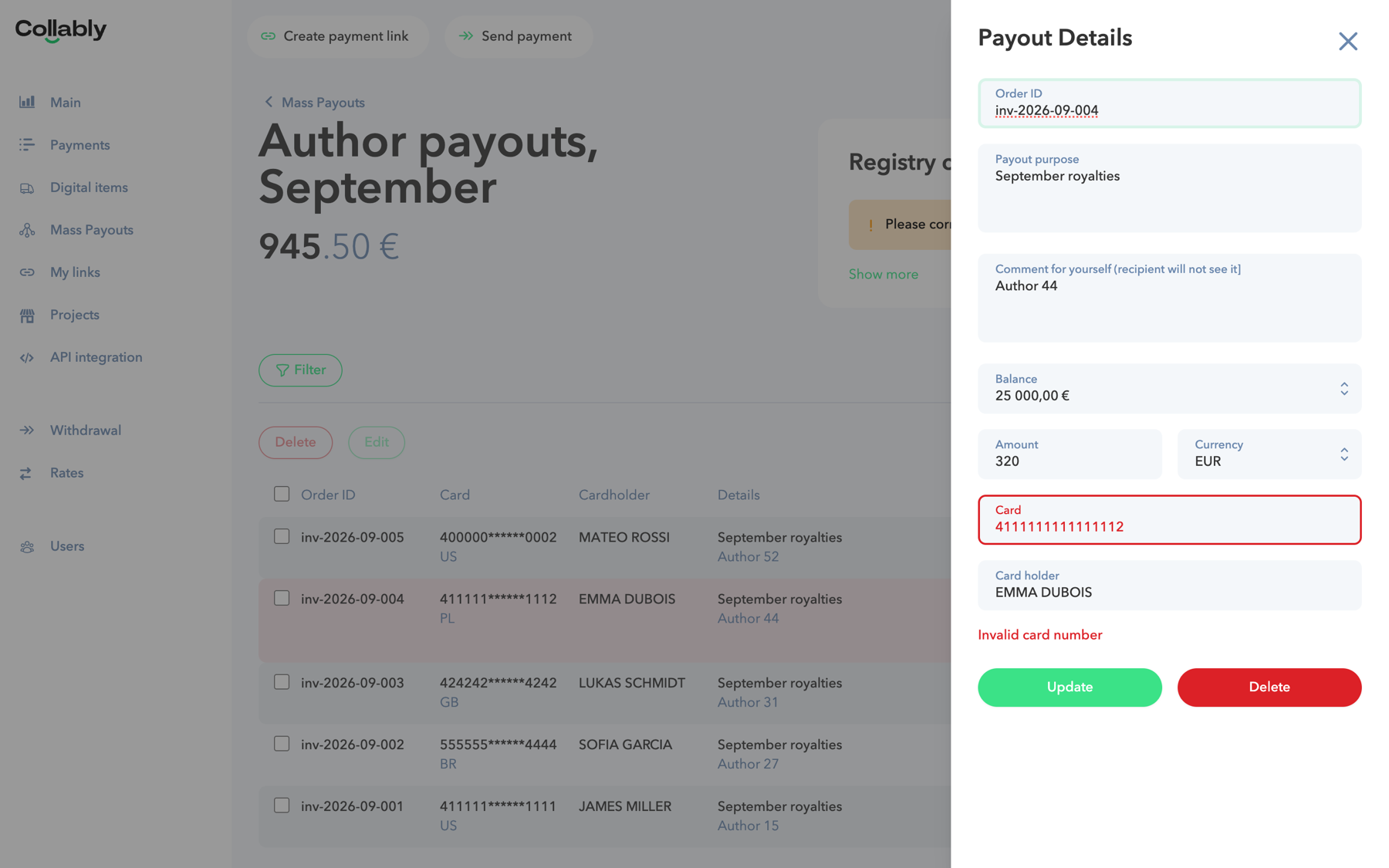
- “Edit” opens the “Payout Details” card. The field with the error is highlighted, the error text is under the form. Fix the data and click “Update”: the row is checked again.
- “Delete” removes the row from the registry. Several rows can be ticked and deleted with the button above the table.
 Open full-size screenshot
If a recipient has to be verified
Sometimes the system asks to verify the recipient. The row then gets “Need to verify” and the registry “Verifying”. Click “Copy link” on the row and send the link to the recipient. Once they pass the check, the row becomes “Ready to execution”.
Running
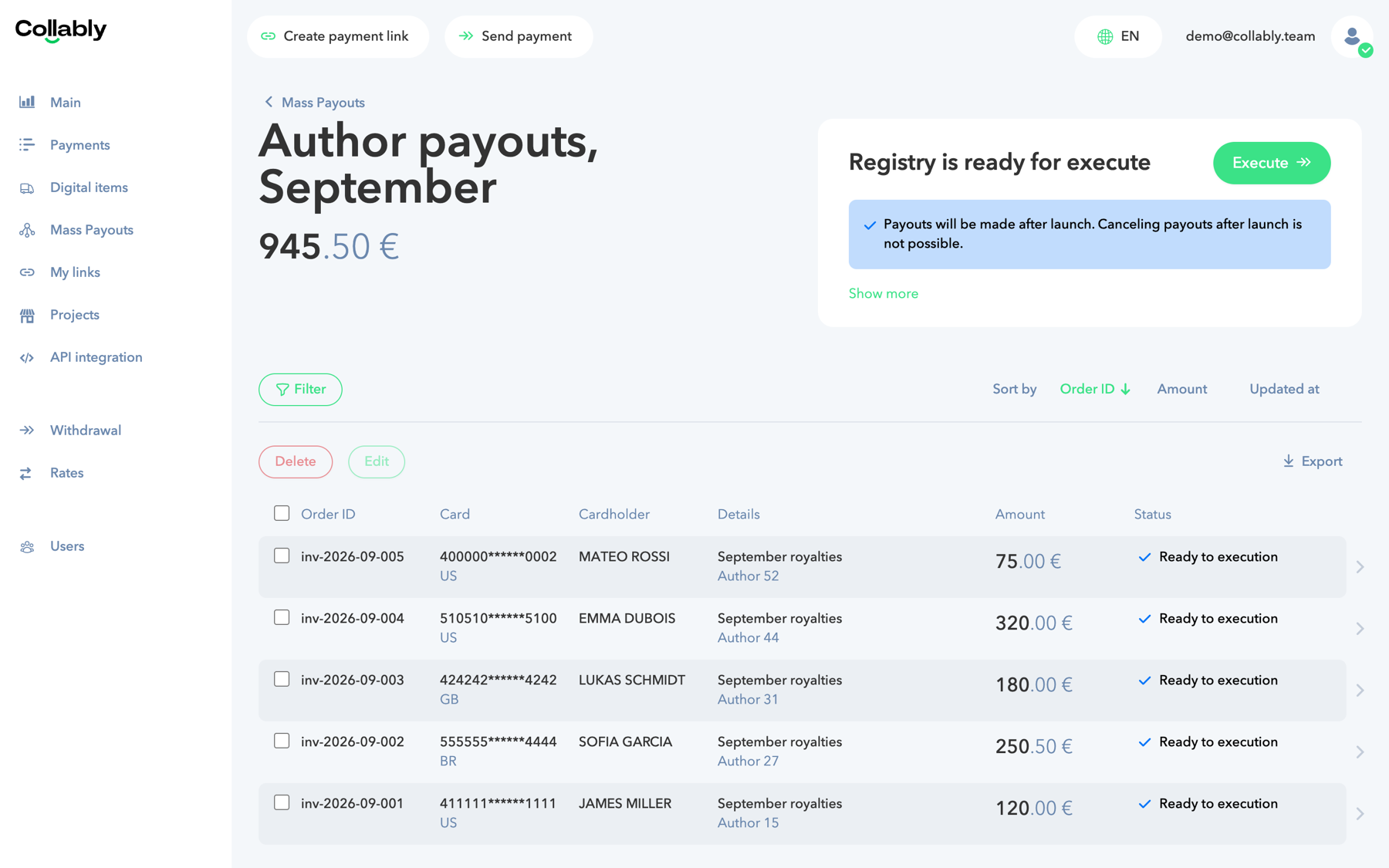
When all rows are “Ready to execution”, the registry becomes “Registry is ready for execute” and the “Execute” button appears. Before running, check the total under the registry title and your balance: it has to cover all payouts plus the commission.
 Open full-size screenshot
After clicking “Execute”, confirm the run. A registry runs only once; payouts cannot be cancelled afterwards.
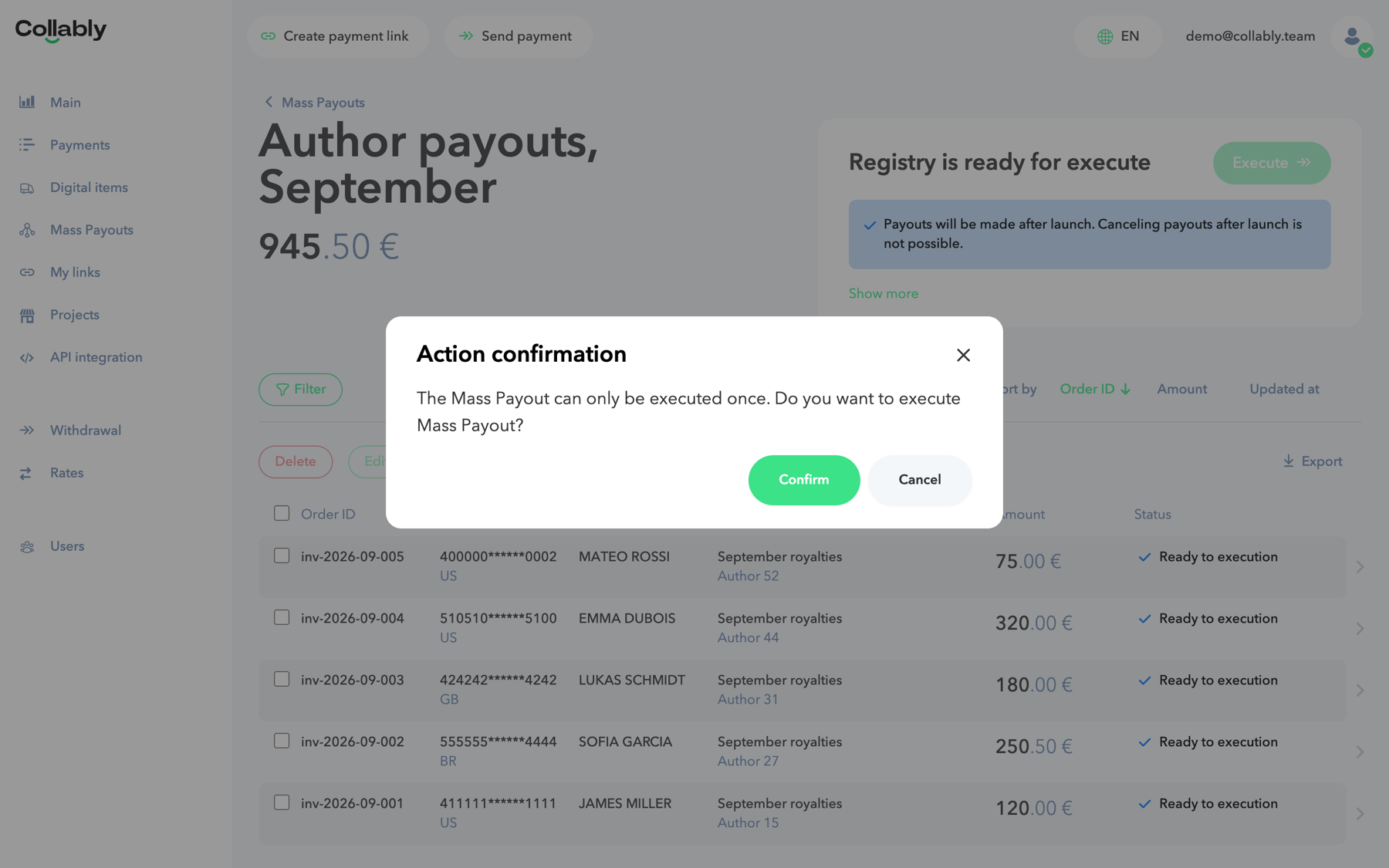 Open full-size screenshot
If payout confirmation for mass payouts is enabled under “Security → 2FA”, the system asks for a code from Telegram or an authenticator app instead of this window. A registry run by an employee is confirmed by whoever is set in their “who confirms payouts” setting: the account owner or the employee themselves.
Statuses and tracking
A registry's status follows from the statuses of its rows. While any row is being checked, the registry is “Validating”; once every row is ready, it becomes “Ready to payout”.
| Status in the list | On the registry page | What is happening | What to do |
|---|---|---|---|
| Validating | Registry Validation | The system is checking the rows | Wait |
| Waiting for edit | Registry contains errors | Some rows have errors | Fix or delete the “Invalid” rows |
| Verifying | Verifying | Some recipients have to pass a check | Send recipients their verification links |
| Ready to payout | Registry is ready for execute | All rows are checked | Click “Execute” |
| In process | Registry is in process | Payouts are being sent | Wait |
| Executed | Registry is completed | All payouts finished — fully, partly or unsuccessfully | Review “Failed” and “Cancelled” rows |
| Status | Meaning | What you can do |
|---|---|---|
| New | The row is waiting to be checked | Edit, delete |
| Invalid | The row has an error and is highlighted | Edit, delete |
| Need to verify | The recipient has to pass verification | “Copy link” and send it to the recipient |
| Ready to execution | The check passed | Delete |
| In process | The payout is sent and being processed | — |
| Successful | The money reached the recipient | Open “Payouts History” |
| Failed | The provider declined the payout | Run again |
| Cancelled | The payout was not created, most often due to insufficient balance | Edit, delete, run again |
This is a completed registry where some payouts did not go through. The panel on the right shows the number of rows per status (“Show more”).
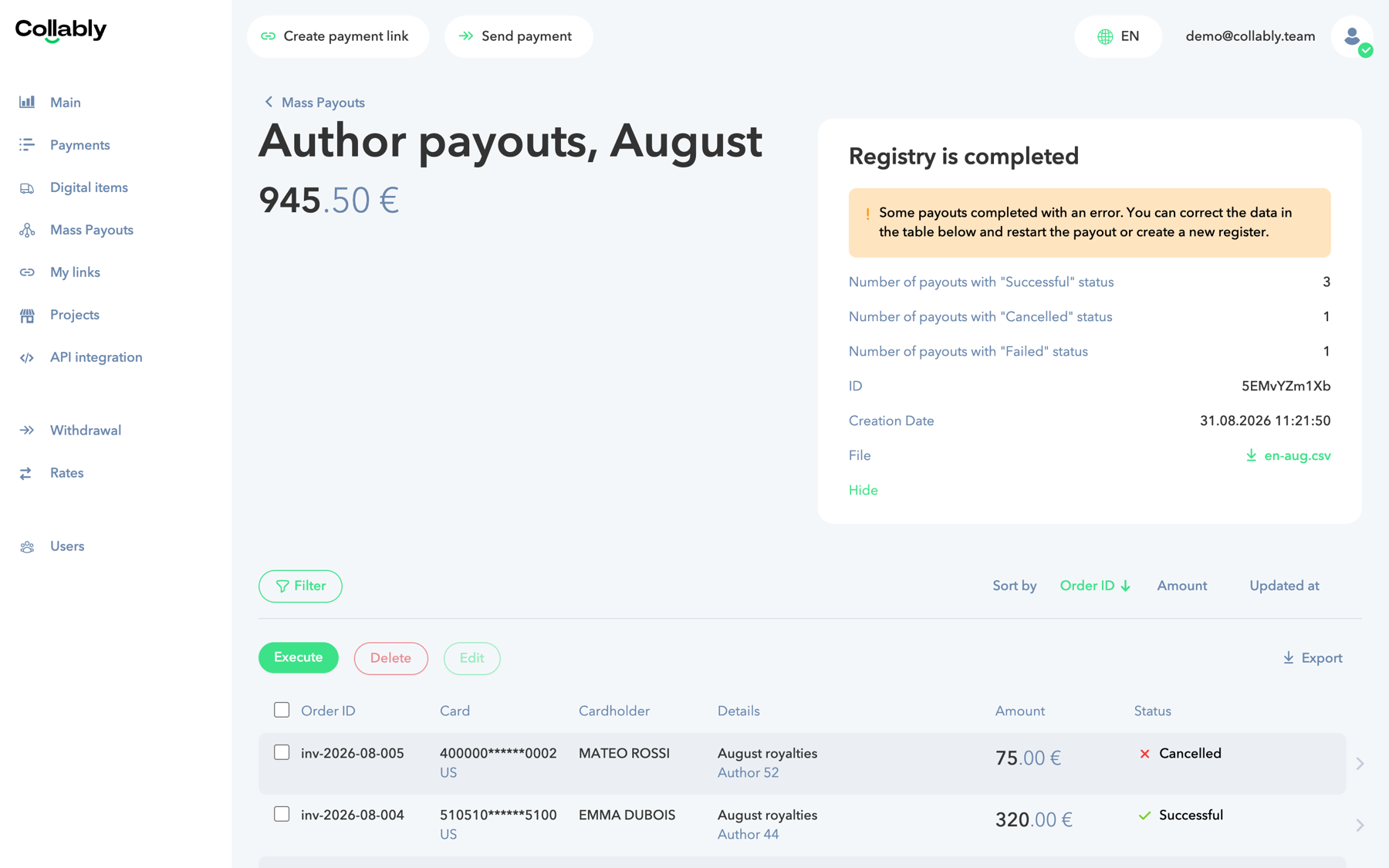 Open full-size screenshot
To retry payouts after the registry is completed, tick the “Failed” and “Cancelled” rows and click “Execute” above the table. Every attempt creates a new payout; all of them are listed under “Payouts History” on the row.
The “Export” button on the registry page downloads the result: XLSX or CSV, up to 50,000 rows matching the current filters. A link to the file is emailed to you and is valid for 24 hours.
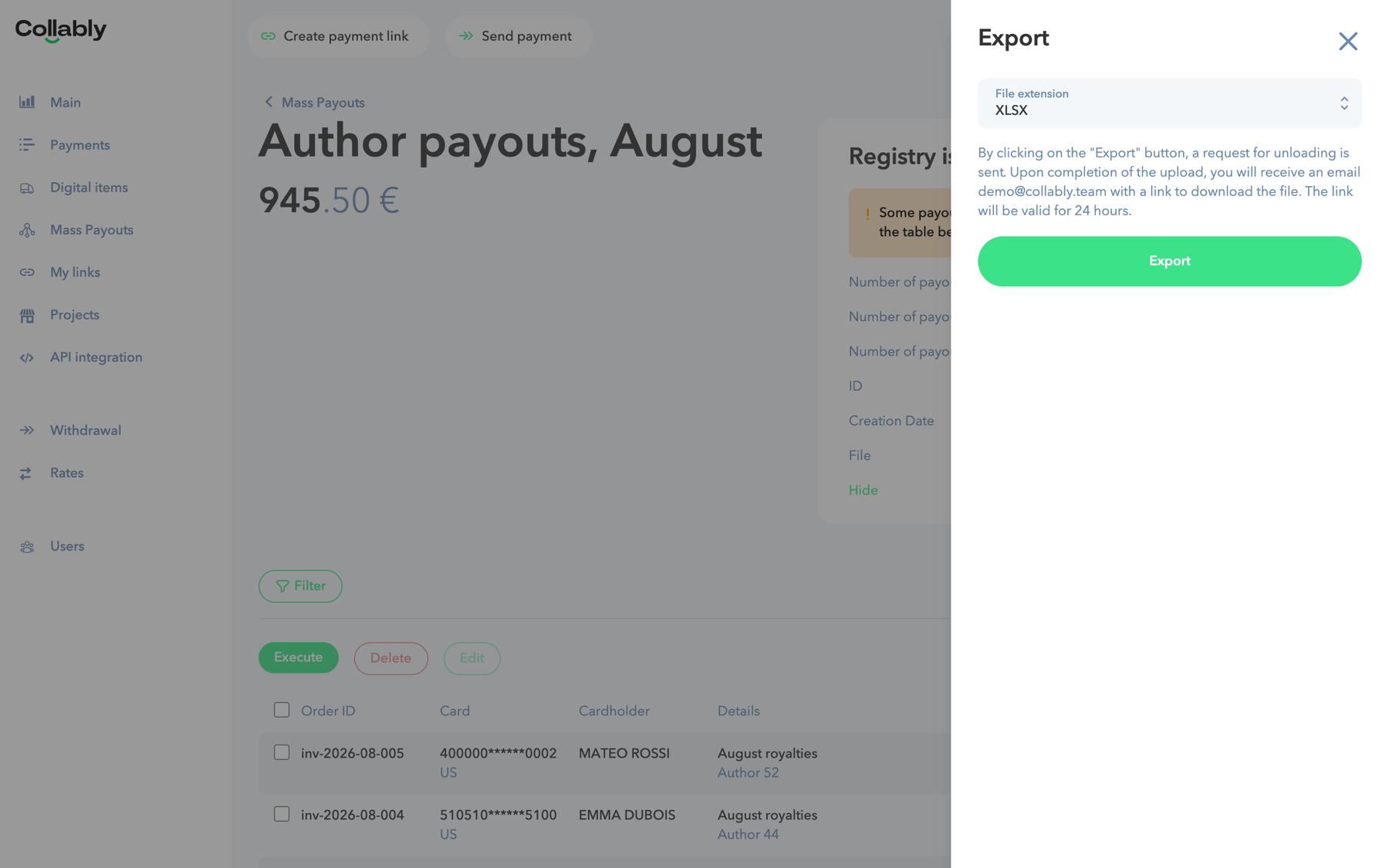 Open full-size screenshot
FAQ and common errors
There is no “Mass Payouts” item in the menu.
Support enables the feature — contact your account manager. If you are an employee, the account owner has to grant you access to mass payouts in the users section.
“No available payout methods were found by your tariffs”.
You have no payout tariff. Contact your account manager.
“Invalid CSV row” or “CSV row parsing error” on upload.
A row has fewer columns than the chosen method needs, or the file was saved with another separator. Compare the file with the template and make sure no description contains a ;.
“No available tariff were found by provided payout data”.
The amount is outside the tariff limits, or the payout currency is not enabled. Fix the amount or currency in the row.
The “Execute” button is disabled.
Not every row is “Ready to execution”. Fix or delete the “Invalid” rows and wait for “Need to verify” recipients to pass verification.
Will my balance be enough?
The balance is not checked in advance: money is debited per payout. If it runs out, some rows end up “Cancelled”. Top up the balance with a margin for the commission before running.
A row is “Cancelled” — how do I find out why?
Export the registry: the reason is in the Last Error Message column. Once the cause is fixed, the row can be run again.
Who pays the commission?
By default the sender: the commission is debited from your balance on top of the amount. To have the recipient pay it, ask your account manager to switch the setting for your account.
Can I cancel a registry that is already running?
No. A registry runs once and cannot be stopped after “Execute”. Check amounts and details before running.
Can I upload the same file again?
If Payout order Id is filled in, rows with already used numbers will fail the check. This protects you from paying twice by accident.